Skip to content

Excel Functions

Excel f(x)s = Excel Functions

  • When Excel tells you to go get some life Excel User tips
  • Custom fiscal year calendar (CFlex) Basic Math
  • Unix DateTime Number Basic Math
  • Sorting with functions only CHOOSE
  • Lesson learned: Do not trust Google Sheets function Google Sheets
  • VALUE() of LEFT() Formulas - combined functions
  • Cuts string of list of items Formulas - combined functions
  • Fixed length ID Formulas - combined functions

Multiple lines in cell using functions

Posted on December 2, 2016 By ANmar

You must already know that when you press Enter after you modify a cell, the cell content will be saved and you jump down to cell below (we can change that behavior by the way, but that is another post).

And you could have already know that if you want to have multiple lines inside a cell, you need to press ALT+ENTER to do that.

But, how can we do that in formula ??


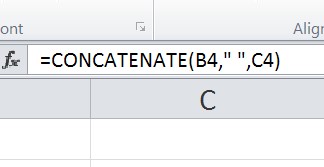
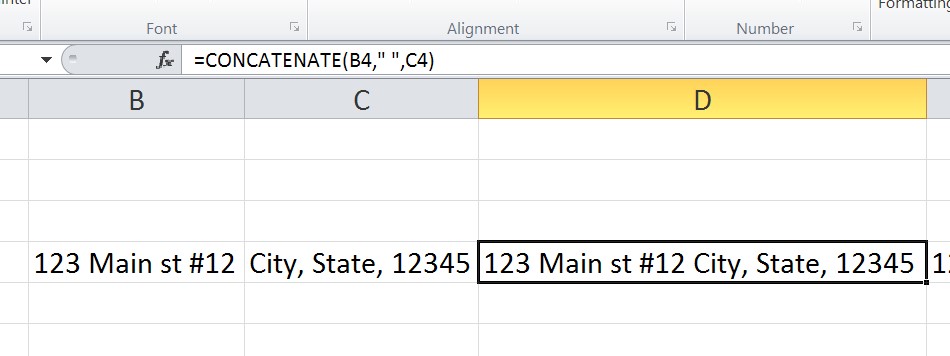
I got a request on how to do that in a spreadsheet, so, the client wanted to convert two columns having two parts of address, Column C has Street address and street name, and column D has city, state and Zip code.
post1502-1

Then after we do that, we need the new cell to have street address in one line, then the line below to have City, State and Zip code, that was the first request.
post1502-2

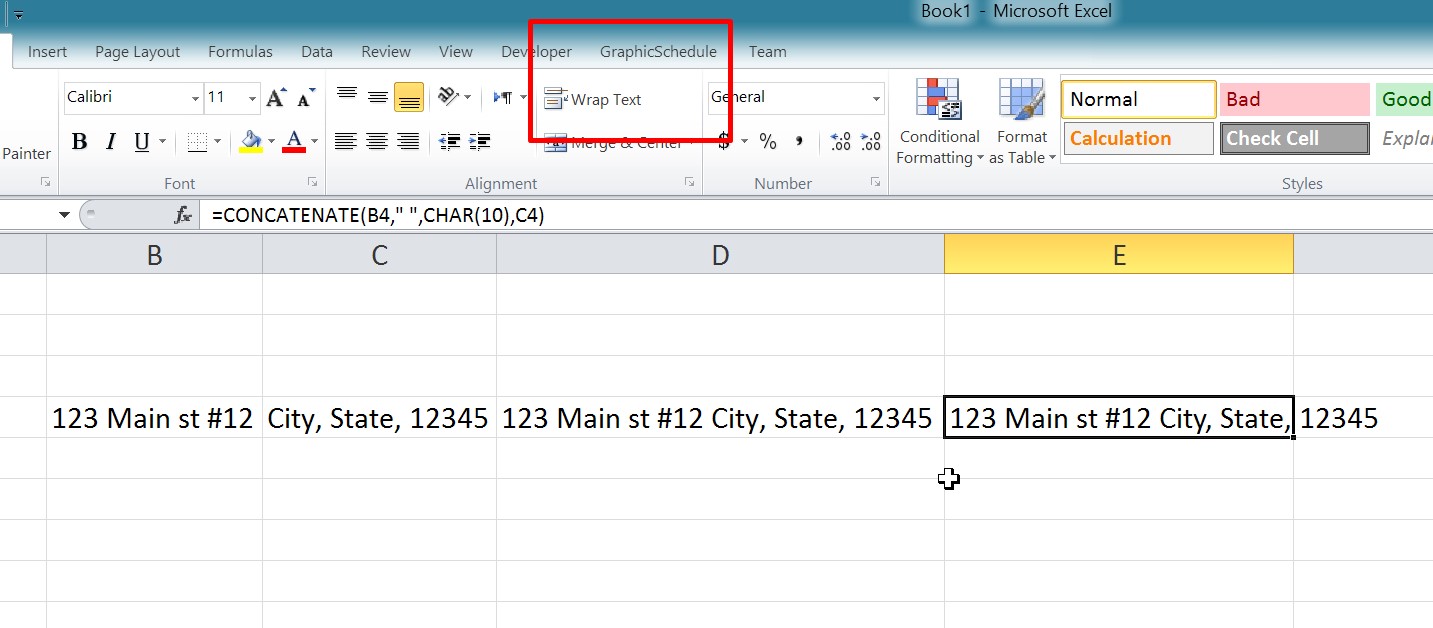
Yet, we do not see that ENTER here, what we need to do now is to make sure that the cell has “Wrap text” on, since Excel could not recognize the ENTER (Versus if you do it with ALT+ENTER), once we do that, we can see that ENTER (which is represented by CHAR(10) ) inside the cell
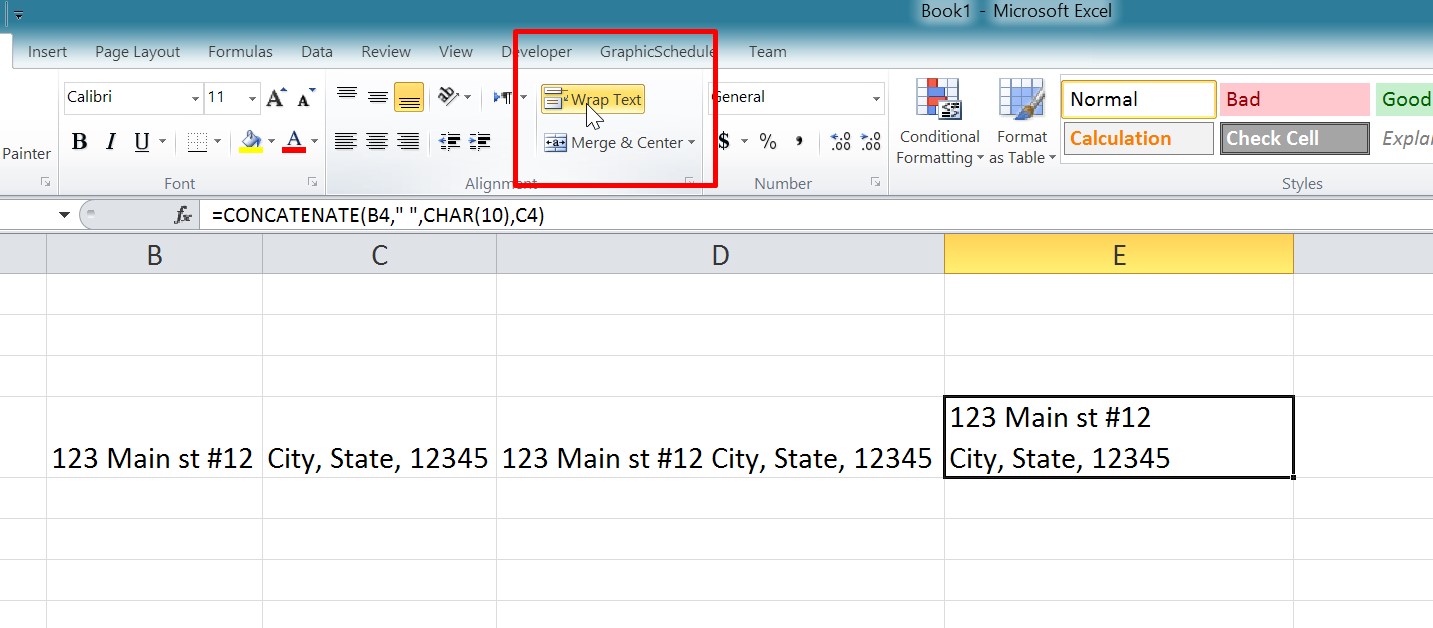
post1502-3

Then after we did that, the client was like, “Ok, how about if we do the Zip code in third line?”

I always got that, I mean the client feels that we did so easily, that means we con push it further….

The main challenge was to find something that we cam tell the formula to replace it with “Enter”, in our situation, we always have the Zip code starting with 1, so the final formula was like this
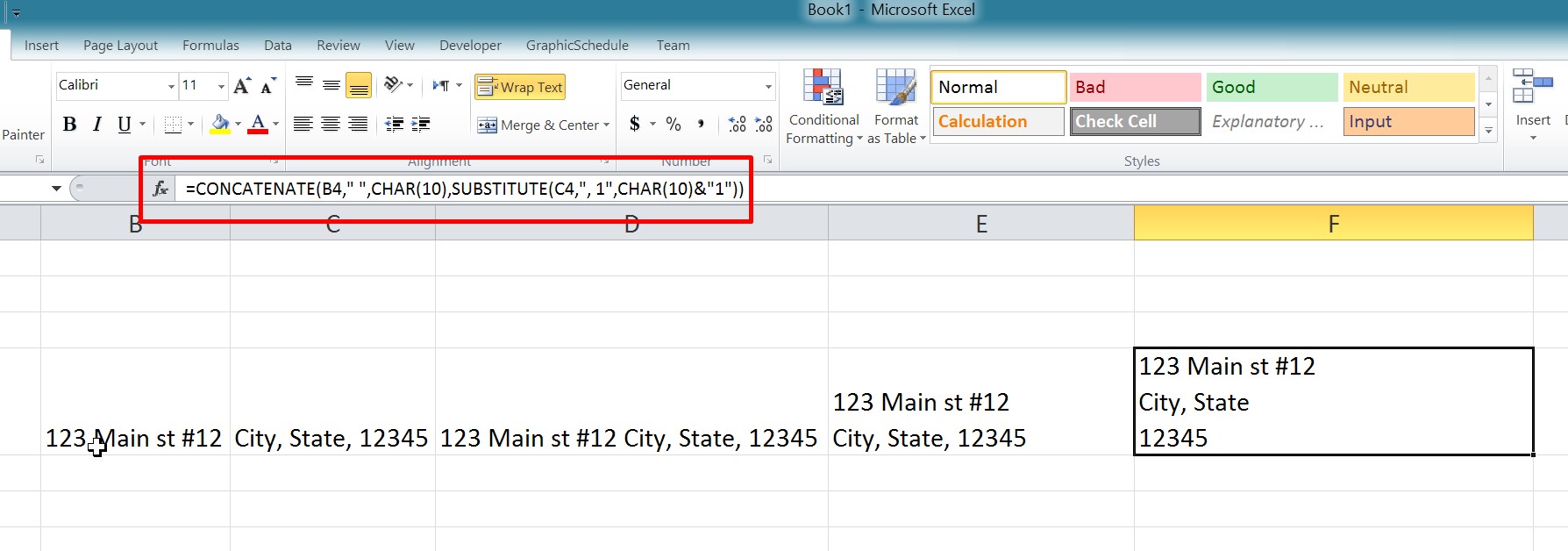
post1502-4

=CONCATENATE(B4," ",CHAR(10),SUBSTITUTE(C4,", 1",CHAR(10)&"1"))

Let me know if that helped, or if you have other ideas
CHAR, CONCATINATE, Formulas - combined functions, Standard functions, SUBSTITUTE, Texts and Strings

Post navigation

Previous Post: Links between two workbooks – dynamically using functions
Next Post: MATCH fumction, just a simple search

Related Posts

  • Always get 1st name (or last) Formulas - combined functions
  • Count cells with condition – multiple conditions COUNTIFS
  • Limited Ceiling Basic Math
  • Fx to cut long column into two columns Formulas - combined functions
  • Convert 2-column into wide (column-row) table Formulas - combined functions
  • Fixed length ID Formulas - combined functions

Recent Posts

  • Stale values (Scratched functions)
  • Middle name + 1st name
  • LastSunday, LastSaturday
  • Paste Special Percentage
  • Jan8 date format

Archives

Categories

  • Array formula (1)
  • Formulas – combined functions (58)
  • Google Sheets (2)
  • Non-functions (36)
    • ActiveX controls (2)
    • Conditional Formatting (7)
    • Data Validation (7)
    • Excel User tips (19)
    • Format Cells (6)
    • Graphics (4)
    • Names (3)
  • Standard functions (82)
    • Basic Math (18)
    • Date and Time (16)
      • DATE (9)
      • Hour (1)
      • MONTH (7)
      • NETWORKDAYS (2)
      • TODAY (7)
      • WEEKDAY (8)
      • WEEKNUM (1)
      • YEAR (8)
    • Engineering (1)
      • CONVERT (1)
    • Information (6)
      • CELL (4)
      • ISERROR (1)
      • N (1)
    • Logical (30)
      • AND (5)
      • IF (24)
      • IFERROR (6)
      • IFNA (1)
      • IFS (1)
      • ISERROR (1)
      • OR (2)
    • Lookup and References (36)
      • ADDRESS (4)
      • CHOOSE (3)
      • COLUMN (7)
      • FORMULATEXT (1)
      • HLOOKUP (1)
      • HYPERLINK (2)
      • INDEX (5)
      • INDIRECT (6)
      • MATCH (12)
      • OFFSET (15)
      • ROW (11)
      • VLOOKUP (5)
    • Math and Trig (24)
      • ABS (1)
      • CEILING (1)
      • COUNT (1)
      • COUNTA (4)
      • INT (9)
      • LARGE (2)
      • MAX (1)
      • Min (2)
      • SMALL (3)
      • SUM (3)
      • SUMIF (1)
      • SUMIFS (2)
      • SUMPRODUCT (1)
    • Statistical (5)
      • COUNTIF (4)
      • COUNTIFS (1)
    • Texts and Strings (24)
      • CHAR (5)
      • CONCATINATE (1)
      • FIND (1)
      • LEFT (8)
      • Len (4)
      • MID (9)
      • REPT (3)
      • RIGHT (2)
      • SEARCH (9)
      • STRING (1)
      • SUBSTITUTE (2)
      • TEXT (4)
      • TRIM (2)
      • VALUE (2)
  • Uncategorized (2)
  • User-Defined f(x)s = UDF (3)
    • HyperlinkOf (1)
  • Worksheet (16)
  • XLfxs (2)

Meta

  • Log in
  • Entries feed
  • Comments feed
  • WordPress.org
  • Sheet() and Sheets() Lookup and References
  • Searching table in 2 dimensions. Formulas - combined functions
  • Comments versus Notes Excel User tips
  • Worksheet name, dynamically using formula CELL
  • When Excel functions are not enough Excel User tips
  • Stale values (Scratched functions) Excel User tips
  • Looplist – Repeating months using formulas Basic Math
  • Get monthly total from table with dates DATE

Copyright © 2025 Excel Functions.

Powered by PressBook News Dark theme